Make uncertainty legible
When the output is uncertain, state, cost, commitment, and the next step should not be.
Adobe · Generative Music
Generate Music reached Premiere public Beta in August 2026, bringing music generation into your edit. I led the interaction design for prompting, placement, controls, and recovery, so you can explore unpredictable results with a clear cost and next step.
The Beta brings prompting, comparison, and refinement into Premiere. You can try music against your footage and keep editing without a separate download and import step.
I owned the interaction model, detailed states, and design handoff: prompt assistance, generation controls, timeline placement, and failure recovery.
I partnered with product, engineering, research, content, and design-system teams to build on the existing Generate Sound Effects experience and develop the new music workflow.
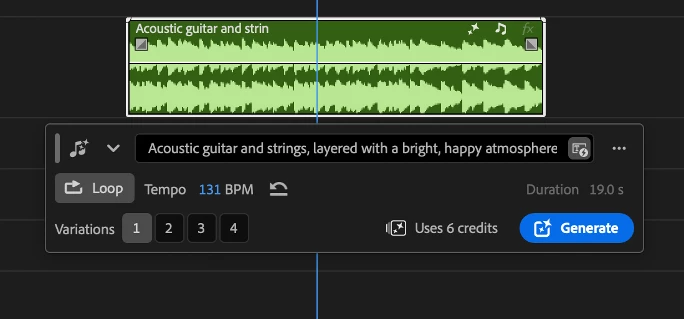
In public Beta, you can generate 5 seconds to 5 minutes of music, use contextual prompting, turn on Loop, choose Auto or manual Tempo, and compare four variations. You can keep editing your result in Premiere.
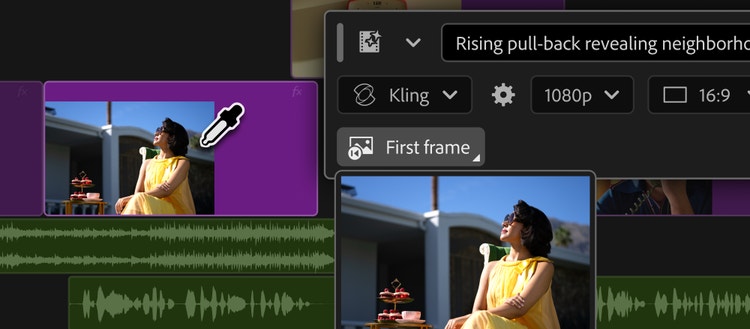
I designed two starting points: let Enhance Prompt refine your own words, or use your selected footage with Create Prompt from Video. Both help you prepare a prompt before you generate. You can still enhance your words without selecting video. If assistance fails, your original text stays intact.
Enhance Prompt · Refine your own words when you have no video selected.
Create Prompt from Video · Use your selected footage to shape the musical direction.
Generate Media brings image, video, and audio tools into one menu. On an audio track, you can still see Image and Video, with an explanation of why they are unavailable. You can use selected video to shape your music prompt, while the result lands on an audio track.
The shared menu explains unavailable choices instead of hiding them.
Tempo starts on Auto, so you can explore without choosing a speed first. Set a BPM (beats per minute), return to Auto, or turn Loop on with one toggle. I kept the credit cost visible beside Generate, so you know what you’ll spend before committing.
I separated editing from generation so you can try new settings without replacing your music. Change the duration, and your current clip stays untouched until you choose Generate. Stripes show work in progress, then a waveform signals your result. You can also back out of uncommitted changes. Close and reopen the toolbar to return to your saved prompt and Loop setting. Once you generate music, the media-type switch disappears to keep the clip tied to its type.
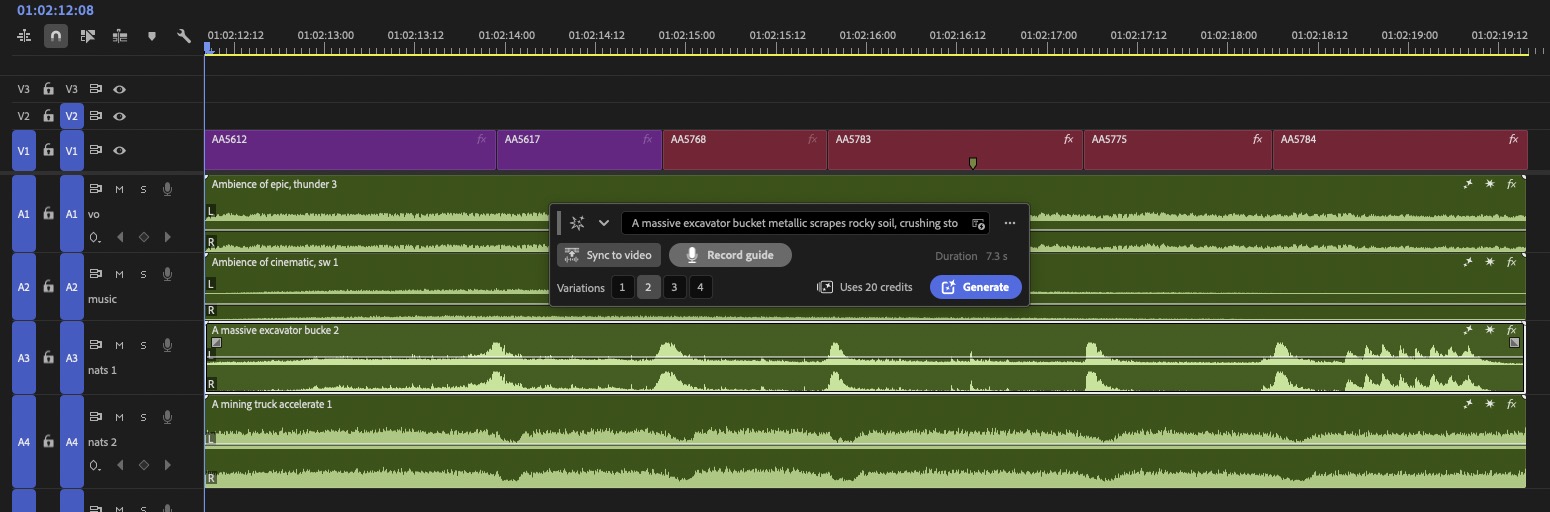
Your timeline may already contain dialogue, effects, and locked tracks. I specified where new music should land so you can add it without disturbing that work. Select a range to choose the destination. If you select video, Premiere finds an available audio track for you. It skips occupied and locked tracks, and creates a new track if you need one.
Four variations let you hear different options against your picture. I designed a clear way back to your choices: with the Generative Tool active, select your clip or its badge to reopen your prompt, settings, and variations. Click elsewhere or press Escape to dismiss the controls.
Select your clip or its badge to revisit your generation controls.
I designed failure states that protect your prompt, settings, and timeline placeholder. The progress panel and error message tell you what happened. Text, icons, and stripes make the status clear while your clip keeps its normal audio color. To try again, reopen your clip and choose Generate. Once it succeeds, a waveform replaces the stripes and you have four variations to explore.
When the output is uncertain, state, cost, commitment, and the next step should not be.
A smaller interface is better only if spending and regeneration remain understandable.
Footage can suggest a starting point, but you should still decide what fits.
Adobe Community
The release announcement and the controls that shipped.
View source (opens in a new tab)Adobe Blog
Adobe’s broader launch story for Generative Media.
View source (opens in a new tab)Adobe Community · Soundscape
The related Beta release brings four editable audio layers into the timeline.
View source (opens in a new tab)ProVideo Coalition · Scott Simmons
Independent testing of the timeline workflow, including useful Soundscape results and timing misses.
View source (opens in a new tab)Adobe Help · Generate Music
Adobe documents variations, regeneration, generation history, and visible credit use.
View source (opens in a new tab)Bassem Fadel · LinkedIn
A practitioner considers pacing, emotional fit, and when a composer or licensed track is the better choice.
View source (opens in a new tab)Anton Knoblach · LinkedIn
A creative showcase shared by Anton Knoblach.
View source (opens in a new tab)Adolfo Hernandez · LinkedIn
A product perspective on editable audio and human authorship.
View source (opens in a new tab)Adolfo Hernandez · LinkedIn
The Beta launch post, with credit to the team behind the release.
View source (opens in a new tab)Adolfo Hernandez · LinkedIn
The IBC launch perspective on Music, Soundscape, and Sound Effects.
View source (opens in a new tab)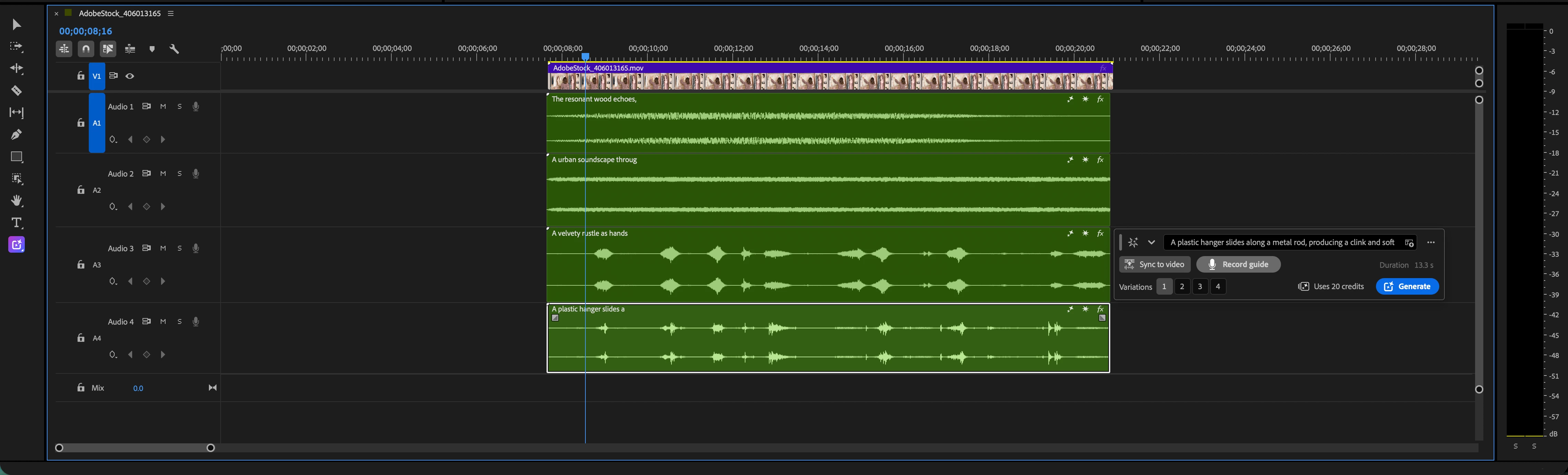
Adobe · Generative AI
Turn visible action into editable layers of ambience and sound effects.

Zipcar
Help members report delays and recover when their car is late.

Zipcar
Introduce Zipcar’s first tiers for occasional and frequent drivers.
Zipcar
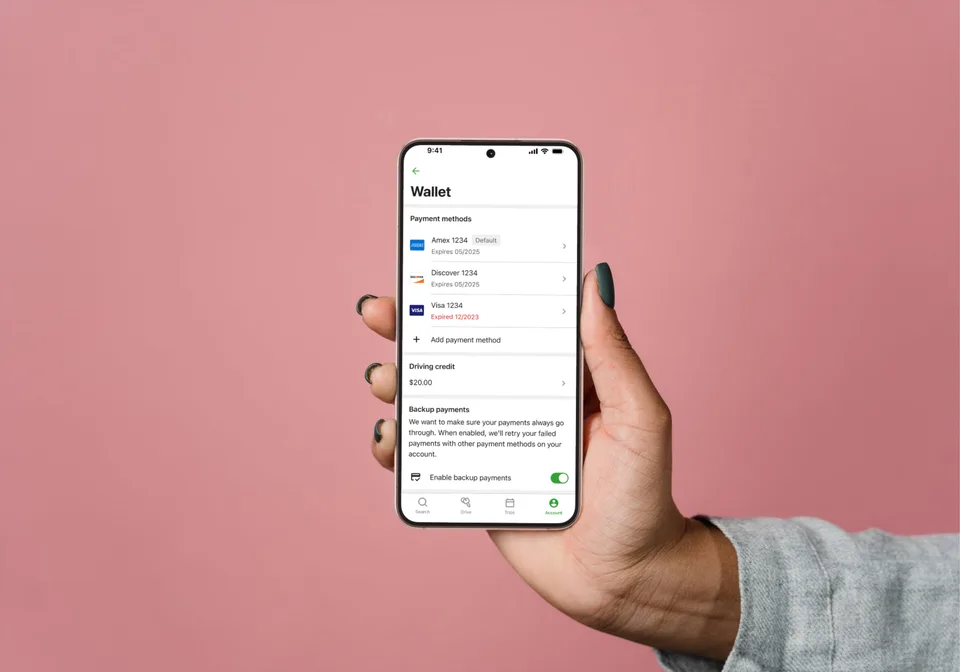
Make payment choice, backup charging, and recovery clear across app and web.

Zipcar
Help members resolve an overdue balance directly in the app.

MetLife
Build a reusable design foundation for teams across more than 50 markets.
Adobe · Generative Music
Generate Music reached Premiere public Beta in August 2026, bringing music generation into your edit. I led the interaction design for prompting, placement, controls, and recovery, so you can explore unpredictable results with a clear cost and next step.
The Beta brings prompting, comparison, and refinement into Premiere. You can try music against your footage and keep editing without a separate download and import step.
I owned the interaction model, detailed states, and design handoff: prompt assistance, generation controls, timeline placement, and failure recovery.
I partnered with product, engineering, research, content, and design-system teams to build on the existing Generate Sound Effects experience and develop the new music workflow.
In public Beta, you can generate 5 seconds to 5 minutes of music, use contextual prompting, turn on Loop, choose Auto or manual Tempo, and compare four variations. You can keep editing your result in Premiere.
I designed two starting points: let Enhance Prompt refine your own words, or use your selected footage with Create Prompt from Video. Both help you prepare a prompt before you generate. You can still enhance your words without selecting video. If assistance fails, your original text stays intact.
Enhance Prompt · Refine your own words when you have no video selected.
Create Prompt from Video · Use your selected footage to shape the musical direction.
Generate Media brings image, video, and audio tools into one menu. On an audio track, you can still see Image and Video, with an explanation of why they are unavailable. You can use selected video to shape your music prompt, while the result lands on an audio track.
The shared menu explains unavailable choices instead of hiding them.
Tempo starts on Auto, so you can explore without choosing a speed first. Set a BPM (beats per minute), return to Auto, or turn Loop on with one toggle. I kept the credit cost visible beside Generate, so you know what you’ll spend before committing.
I separated editing from generation so you can try new settings without replacing your music. Change the duration, and your current clip stays untouched until you choose Generate. Stripes show work in progress, then a waveform signals your result. You can also back out of uncommitted changes. Close and reopen the toolbar to return to your saved prompt and Loop setting. Once you generate music, the media-type switch disappears to keep the clip tied to its type.
Your timeline may already contain dialogue, effects, and locked tracks. I specified where new music should land so you can add it without disturbing that work. Select a range to choose the destination. If you select video, Premiere finds an available audio track for you. It skips occupied and locked tracks, and creates a new track if you need one.
Four variations let you hear different options against your picture. I designed a clear way back to your choices: with the Generative Tool active, select your clip or its badge to reopen your prompt, settings, and variations. Click elsewhere or press Escape to dismiss the controls.
Select your clip or its badge to revisit your generation controls.
I designed failure states that protect your prompt, settings, and timeline placeholder. The progress panel and error message tell you what happened. Text, icons, and stripes make the status clear while your clip keeps its normal audio color. To try again, reopen your clip and choose Generate. Once it succeeds, a waveform replaces the stripes and you have four variations to explore.
When the output is uncertain, state, cost, commitment, and the next step should not be.
A smaller interface is better only if spending and regeneration remain understandable.
Footage can suggest a starting point, but you should still decide what fits.
Adobe Community
The release announcement and the controls that shipped.
View source (opens in a new tab)Adobe Blog
Adobe’s broader launch story for Generative Media.
View source (opens in a new tab)Adobe Community · Soundscape
The related Beta release brings four editable audio layers into the timeline.
View source (opens in a new tab)ProVideo Coalition · Scott Simmons
Independent testing of the timeline workflow, including useful Soundscape results and timing misses.
View source (opens in a new tab)Adobe Help · Generate Music
Adobe documents variations, regeneration, generation history, and visible credit use.
View source (opens in a new tab)Bassem Fadel · LinkedIn
A practitioner considers pacing, emotional fit, and when a composer or licensed track is the better choice.
View source (opens in a new tab)Anton Knoblach · LinkedIn
A creative showcase shared by Anton Knoblach.
View source (opens in a new tab)Adolfo Hernandez · LinkedIn
A product perspective on editable audio and human authorship.
View source (opens in a new tab)Adolfo Hernandez · LinkedIn
The Beta launch post, with credit to the team behind the release.
View source (opens in a new tab)Adolfo Hernandez · LinkedIn
The IBC launch perspective on Music, Soundscape, and Sound Effects.
View source (opens in a new tab)Adobe · Generative AI
Turn visible action into editable layers of ambience and sound effects.
Zipcar
Help members report delays and recover when their car is late.
Zipcar
Introduce Zipcar’s first tiers for occasional and frequent drivers.
Zipcar
Make payment choice, backup charging, and recovery clear across app and web.
Zipcar
Help members resolve an overdue balance directly in the app.
MetLife
Build a reusable design foundation for teams across more than 50 markets.
Adobe · Generative Music
Generate Music reached Premiere public Beta in August 2026, bringing music generation into your edit. I led the interaction design for prompting, placement, controls, and recovery, so you can explore unpredictable results with a clear cost and next step.
The Beta brings prompting, comparison, and refinement into Premiere. You can try music against your footage and keep editing without a separate download and import step.
I owned the interaction model, detailed states, and design handoff: prompt assistance, generation controls, timeline placement, and failure recovery.
I partnered with product, engineering, research, content, and design-system teams to build on the existing Generate Sound Effects experience and develop the new music workflow.
In public Beta, you can generate 5 seconds to 5 minutes of music, use contextual prompting, turn on Loop, choose Auto or manual Tempo, and compare four variations. You can keep editing your result in Premiere.
I designed two starting points: let Enhance Prompt refine your own words, or use your selected footage with Create Prompt from Video. Both help you prepare a prompt before you generate. You can still enhance your words without selecting video. If assistance fails, your original text stays intact.
Enhance Prompt · Refine your own words when you have no video selected.
Create Prompt from Video · Use your selected footage to shape the musical direction.
Generate Media brings image, video, and audio tools into one menu. On an audio track, you can still see Image and Video, with an explanation of why they are unavailable. You can use selected video to shape your music prompt, while the result lands on an audio track.
The shared menu explains unavailable choices instead of hiding them.
Tempo starts on Auto, so you can explore without choosing a speed first. Set a BPM (beats per minute), return to Auto, or turn Loop on with one toggle. I kept the credit cost visible beside Generate, so you know what you’ll spend before committing.
I separated editing from generation so you can try new settings without replacing your music. Change the duration, and your current clip stays untouched until you choose Generate. Stripes show work in progress, then a waveform signals your result. You can also back out of uncommitted changes. Close and reopen the toolbar to return to your saved prompt and Loop setting. Once you generate music, the media-type switch disappears to keep the clip tied to its type.
Your timeline may already contain dialogue, effects, and locked tracks. I specified where new music should land so you can add it without disturbing that work. Select a range to choose the destination. If you select video, Premiere finds an available audio track for you. It skips occupied and locked tracks, and creates a new track if you need one.
Four variations let you hear different options against your picture. I designed a clear way back to your choices: with the Generative Tool active, select your clip or its badge to reopen your prompt, settings, and variations. Click elsewhere or press Escape to dismiss the controls.
Select your clip or its badge to revisit your generation controls.
I designed failure states that protect your prompt, settings, and timeline placeholder. The progress panel and error message tell you what happened. Text, icons, and stripes make the status clear while your clip keeps its normal audio color. To try again, reopen your clip and choose Generate. Once it succeeds, a waveform replaces the stripes and you have four variations to explore.
When the output is uncertain, state, cost, commitment, and the next step should not be.
A smaller interface is better only if spending and regeneration remain understandable.
Footage can suggest a starting point, but you should still decide what fits.
Adobe Community
The release announcement and the controls that shipped.
View source (opens in a new tab)Adobe Blog
Adobe’s broader launch story for Generative Media.
View source (opens in a new tab)Adobe Community · Soundscape
The related Beta release brings four editable audio layers into the timeline.
View source (opens in a new tab)ProVideo Coalition · Scott Simmons
Independent testing of the timeline workflow, including useful Soundscape results and timing misses.
View source (opens in a new tab)Adobe Help · Generate Music
Adobe documents variations, regeneration, generation history, and visible credit use.
View source (opens in a new tab)Bassem Fadel · LinkedIn
A practitioner considers pacing, emotional fit, and when a composer or licensed track is the better choice.
View source (opens in a new tab)Anton Knoblach · LinkedIn
A creative showcase shared by Anton Knoblach.
View source (opens in a new tab)Adolfo Hernandez · LinkedIn
A product perspective on editable audio and human authorship.
View source (opens in a new tab)Adolfo Hernandez · LinkedIn
The Beta launch post, with credit to the team behind the release.
View source (opens in a new tab)Adolfo Hernandez · LinkedIn
The IBC launch perspective on Music, Soundscape, and Sound Effects.
View source (opens in a new tab)Adobe · Generative AI
Turn visible action into editable layers of ambience and sound effects.
Zipcar
Help members report delays and recover when their car is late.
Zipcar
Introduce Zipcar’s first tiers for occasional and frequent drivers.
Zipcar
Make payment choice, backup charging, and recovery clear across app and web.
Zipcar
Help members resolve an overdue balance directly in the app.
MetLife
Build a reusable design foundation for teams across more than 50 markets.