Protect the existing work
Once AI can act in a workspace, it needs explicit rules for what it may change, skip, or create.
Adobe · Generative Soundscape
Generate Soundscape adds sound to silent video. AI looks at your footage and creates matching background sounds and sound effects, so you can hear the scene you see. Instead of finding and placing every sound by hand, you start with separate audio clips in Premiere that you can adjust.
Generate Soundscape reached Premiere Beta in August 2026. It creates separate background sounds and sound effects from video, giving you a starting point you can mix and refine.
I owned the end-to-end interaction design for Generate Soundscape: source selection, generation states, track placement, editing, and recovery. I carried those decisions through design reviews, final specifications, and engineering handoff.
When this work began, Generate Sound Effects was the only generative audio tool available in Premiere. Soundscape introduced a more complex workflow: creating sound effects and ambience together, placing multiple layers, and letting you edit or regenerate each one. I worked with the Gen Audio team to extend the existing experience for that new capability.
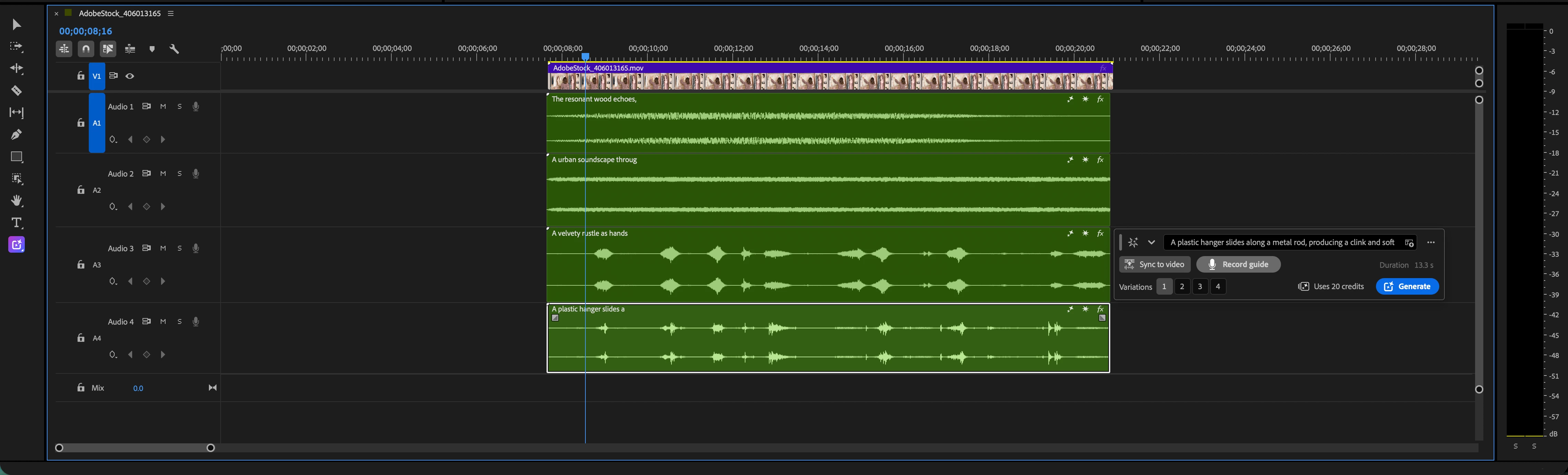
The August 2026 Beta produces four separate audio layers: two background and two foreground. You can move, mix, and regenerate each one. The initial release supported single scenes of roughly 15 seconds or less.
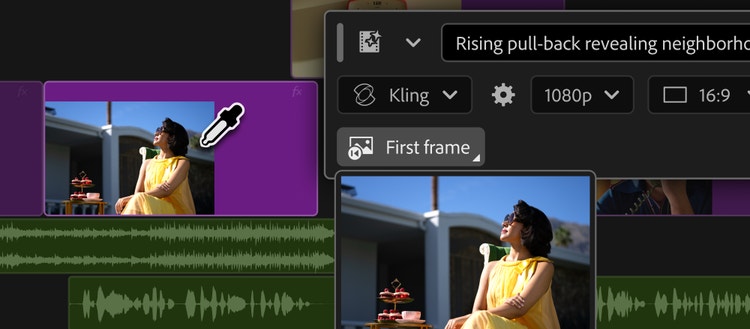
A selected clip and a timeline range can point to different footage. I defined both entry points so you can understand the source before spending credits: one clip, or the visible picture across a range. Hidden or covered footage is excluded. Team review surfaced a risk: a generation outline on selected video could imply overwriting it. I kept that cue off the video and made the source explicit in the controls.
Early exploration asked you to assign outputs to numbered tracks in a separate step. That meant translating those labels back into a timeline you could already see. I proposed placing the layers directly in the timeline, where you could move them yourself.
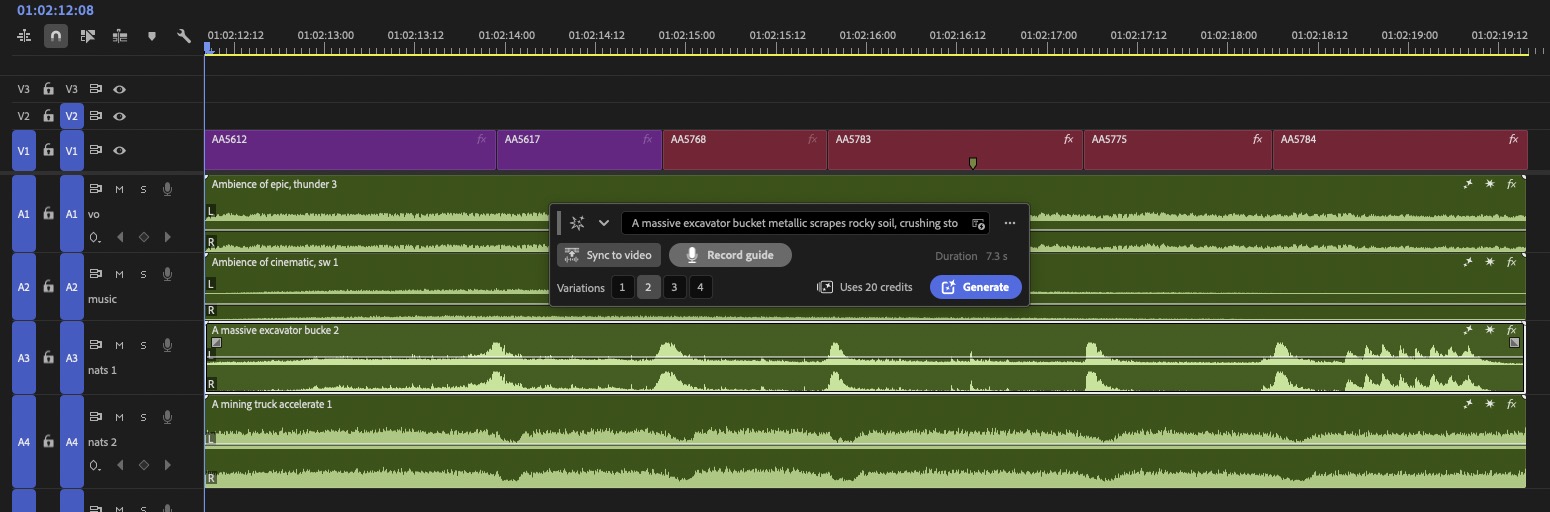
An interim design pushed existing tracks down to make room. The final specification instead keeps new layers together on available tracks, skips occupied tracks, and creates tracks when needed. During engineering review, we clarified that locked tracks count as occupied too. I incorporated that rule so automatic placement respects the boundaries of your existing edit.
You can rebalance the background or regenerate one foreground sound without discarding the whole soundscape. I adapted the existing Sound Effects panel with the Gen Audio team, giving you a familiar place to refine the new multi-layer outputs. In the specification, Add Timing lets you record your own timing. Sync to Video matches the sound to the footage instead. I required you to remove a timing recording before enabling automatic sync, so it would not silently replace your work.
I avoided promising an exact output count while the model was evolving. The Beta settled on four layers, each editable on its own.
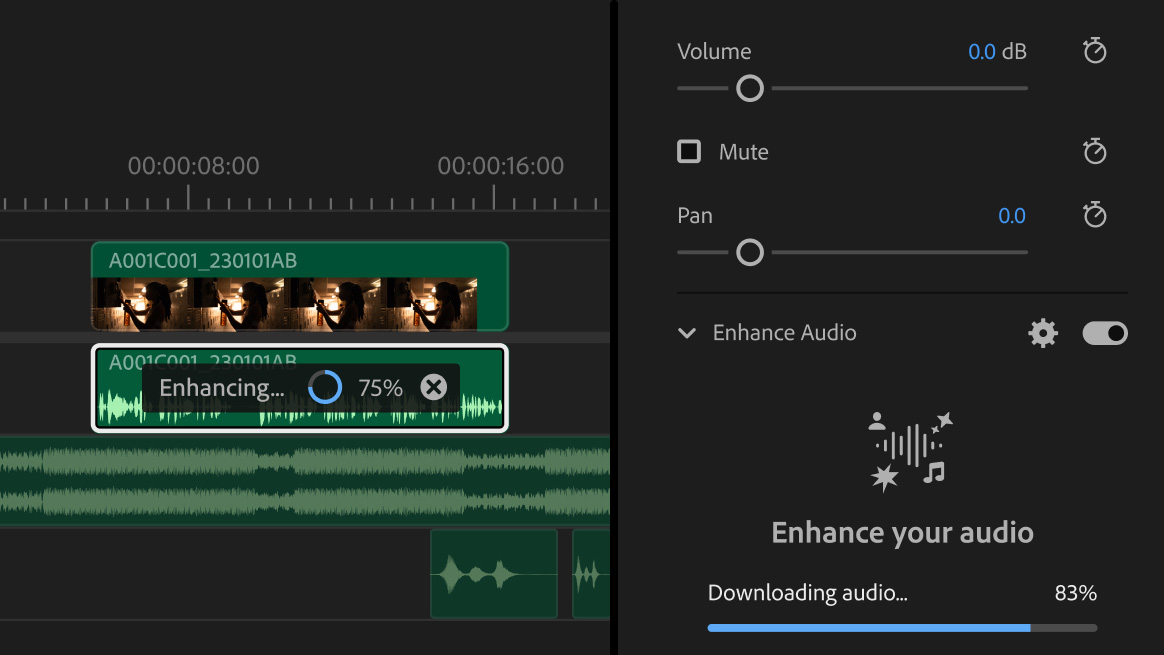
You can move footage while generation runs. Engineering review exposed a retry problem: a failed placeholder might no longer refer to the same picture. I explored returning you to the source selection. For the first implementation, we retained the shared workspace’s failed-clip behavior: label the failure, then start a fresh attempt from footage. The final specification places retries on available tracks without overwriting the failed attempt.
Final specification: visible failure, then a fresh attempt from your footage.
Once AI can act in a workspace, it needs explicit rules for what it may change, skip, or create.
Context saves effort only when you can tell what the system will interpret before committing.
With several related outputs, placement, editability, and recovery matter as much as generation.
Adobe Community · Soundscape
The Beta announcement introduces four independently editable and regenerable audio layers.
View source (opens in a new tab)ProVideo Coalition · Scott Simmons
Independent testing of the timeline workflow, including useful Soundscape results and timing misses.
View source (opens in a new tab)Digital Production · Bela Beier
Release analysis describes Soundscape’s four tracks and variations, with the final mix still in the editor’s hands.
View source (opens in a new tab)Digital Camera World · Mike Harris
A first-hand demo report sees promise for rough edits, while noting sounds that still need adjustment. Broader Gen Audio coverage.
View source (opens in a new tab)Adobe Help · Soundscape
The product guide documents visible-video context and ordinary trimming, moving, and effects afterward.
View source (opens in a new tab)Adobe Blog
Adobe’s broader launch story for Generative Media.
View source (opens in a new tab)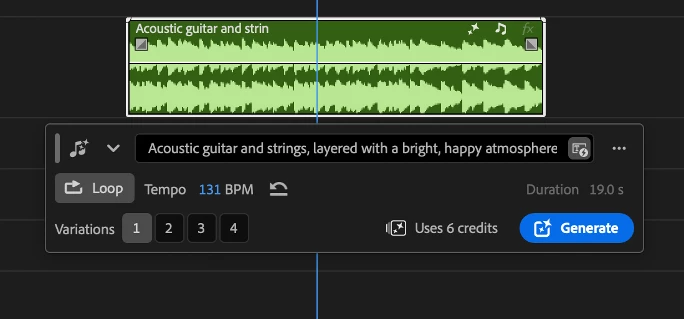
Adobe · Generative AI
Create music that fits your scene with clear, editable generation controls.

Zipcar
Help members report delays and recover when their car is late.

Zipcar
Introduce Zipcar’s first tiers for occasional and frequent drivers.
Zipcar
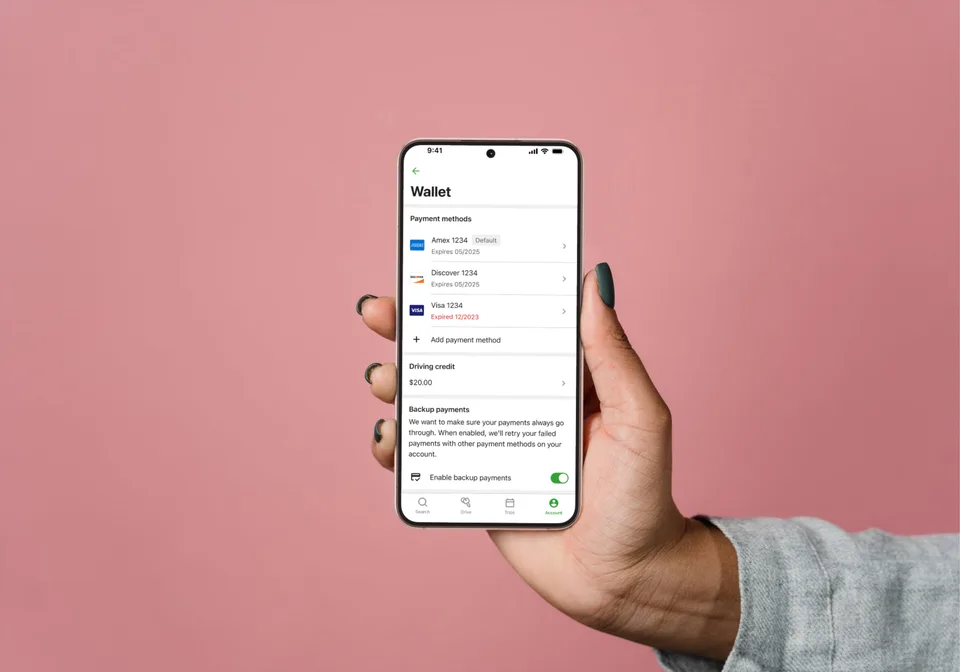
Make payment choice, backup charging, and recovery clear across app and web.
Zipcar
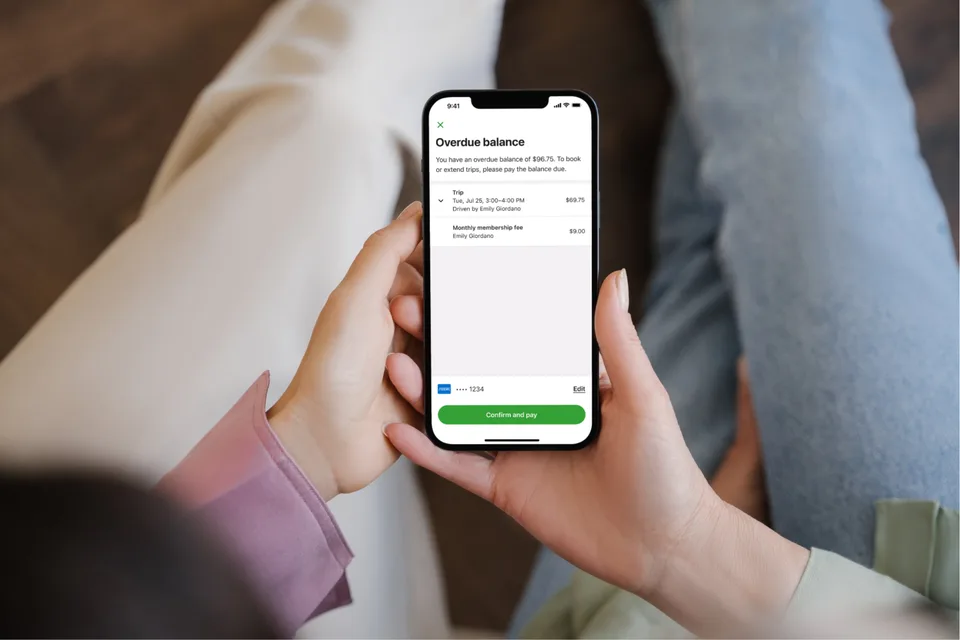
Help members resolve an overdue balance directly in the app.

MetLife
Build a reusable design foundation for teams across more than 50 markets.
Adobe · Generative Soundscape
Generate Soundscape adds sound to silent video. AI looks at your footage and creates matching background sounds and sound effects, so you can hear the scene you see. Instead of finding and placing every sound by hand, you start with separate audio clips in Premiere that you can adjust.
Generate Soundscape reached Premiere Beta in August 2026. It creates separate background sounds and sound effects from video, giving you a starting point you can mix and refine.
I owned the end-to-end interaction design for Generate Soundscape: source selection, generation states, track placement, editing, and recovery. I carried those decisions through design reviews, final specifications, and engineering handoff.
When this work began, Generate Sound Effects was the only generative audio tool available in Premiere. Soundscape introduced a more complex workflow: creating sound effects and ambience together, placing multiple layers, and letting you edit or regenerate each one. I worked with the Gen Audio team to extend the existing experience for that new capability.
The August 2026 Beta produces four separate audio layers: two background and two foreground. You can move, mix, and regenerate each one. The initial release supported single scenes of roughly 15 seconds or less.
A selected clip and a timeline range can point to different footage. I defined both entry points so you can understand the source before spending credits: one clip, or the visible picture across a range. Hidden or covered footage is excluded. Team review surfaced a risk: a generation outline on selected video could imply overwriting it. I kept that cue off the video and made the source explicit in the controls.
Early exploration asked you to assign outputs to numbered tracks in a separate step. That meant translating those labels back into a timeline you could already see. I proposed placing the layers directly in the timeline, where you could move them yourself.
An interim design pushed existing tracks down to make room. The final specification instead keeps new layers together on available tracks, skips occupied tracks, and creates tracks when needed. During engineering review, we clarified that locked tracks count as occupied too. I incorporated that rule so automatic placement respects the boundaries of your existing edit.
You can rebalance the background or regenerate one foreground sound without discarding the whole soundscape. I adapted the existing Sound Effects panel with the Gen Audio team, giving you a familiar place to refine the new multi-layer outputs. In the specification, Add Timing lets you record your own timing. Sync to Video matches the sound to the footage instead. I required you to remove a timing recording before enabling automatic sync, so it would not silently replace your work.
I avoided promising an exact output count while the model was evolving. The Beta settled on four layers, each editable on its own.
You can move footage while generation runs. Engineering review exposed a retry problem: a failed placeholder might no longer refer to the same picture. I explored returning you to the source selection. For the first implementation, we retained the shared workspace’s failed-clip behavior: label the failure, then start a fresh attempt from footage. The final specification places retries on available tracks without overwriting the failed attempt.
Final specification: visible failure, then a fresh attempt from your footage.
Once AI can act in a workspace, it needs explicit rules for what it may change, skip, or create.
Context saves effort only when you can tell what the system will interpret before committing.
With several related outputs, placement, editability, and recovery matter as much as generation.
Adobe Community · Soundscape
The Beta announcement introduces four independently editable and regenerable audio layers.
View source (opens in a new tab)ProVideo Coalition · Scott Simmons
Independent testing of the timeline workflow, including useful Soundscape results and timing misses.
View source (opens in a new tab)Digital Production · Bela Beier
Release analysis describes Soundscape’s four tracks and variations, with the final mix still in the editor’s hands.
View source (opens in a new tab)Digital Camera World · Mike Harris
A first-hand demo report sees promise for rough edits, while noting sounds that still need adjustment. Broader Gen Audio coverage.
View source (opens in a new tab)Adobe Help · Soundscape
The product guide documents visible-video context and ordinary trimming, moving, and effects afterward.
View source (opens in a new tab)Adobe Blog
Adobe’s broader launch story for Generative Media.
View source (opens in a new tab)Adobe · Generative AI
Create music that fits your scene with clear, editable generation controls.
Zipcar
Help members report delays and recover when their car is late.
Zipcar
Introduce Zipcar’s first tiers for occasional and frequent drivers.
Zipcar
Make payment choice, backup charging, and recovery clear across app and web.
Zipcar
Help members resolve an overdue balance directly in the app.
MetLife
Build a reusable design foundation for teams across more than 50 markets.
Adobe · Generative Soundscape
Generate Soundscape adds sound to silent video. AI looks at your footage and creates matching background sounds and sound effects, so you can hear the scene you see. Instead of finding and placing every sound by hand, you start with separate audio clips in Premiere that you can adjust.
Generate Soundscape reached Premiere Beta in August 2026. It creates separate background sounds and sound effects from video, giving you a starting point you can mix and refine.
I owned the end-to-end interaction design for Generate Soundscape: source selection, generation states, track placement, editing, and recovery. I carried those decisions through design reviews, final specifications, and engineering handoff.
When this work began, Generate Sound Effects was the only generative audio tool available in Premiere. Soundscape introduced a more complex workflow: creating sound effects and ambience together, placing multiple layers, and letting you edit or regenerate each one. I worked with the Gen Audio team to extend the existing experience for that new capability.
The August 2026 Beta produces four separate audio layers: two background and two foreground. You can move, mix, and regenerate each one. The initial release supported single scenes of roughly 15 seconds or less.
A selected clip and a timeline range can point to different footage. I defined both entry points so you can understand the source before spending credits: one clip, or the visible picture across a range. Hidden or covered footage is excluded. Team review surfaced a risk: a generation outline on selected video could imply overwriting it. I kept that cue off the video and made the source explicit in the controls.
Early exploration asked you to assign outputs to numbered tracks in a separate step. That meant translating those labels back into a timeline you could already see. I proposed placing the layers directly in the timeline, where you could move them yourself.
An interim design pushed existing tracks down to make room. The final specification instead keeps new layers together on available tracks, skips occupied tracks, and creates tracks when needed. During engineering review, we clarified that locked tracks count as occupied too. I incorporated that rule so automatic placement respects the boundaries of your existing edit.
You can rebalance the background or regenerate one foreground sound without discarding the whole soundscape. I adapted the existing Sound Effects panel with the Gen Audio team, giving you a familiar place to refine the new multi-layer outputs. In the specification, Add Timing lets you record your own timing. Sync to Video matches the sound to the footage instead. I required you to remove a timing recording before enabling automatic sync, so it would not silently replace your work.
I avoided promising an exact output count while the model was evolving. The Beta settled on four layers, each editable on its own.
You can move footage while generation runs. Engineering review exposed a retry problem: a failed placeholder might no longer refer to the same picture. I explored returning you to the source selection. For the first implementation, we retained the shared workspace’s failed-clip behavior: label the failure, then start a fresh attempt from footage. The final specification places retries on available tracks without overwriting the failed attempt.
Final specification: visible failure, then a fresh attempt from your footage.
Once AI can act in a workspace, it needs explicit rules for what it may change, skip, or create.
Context saves effort only when you can tell what the system will interpret before committing.
With several related outputs, placement, editability, and recovery matter as much as generation.
Adobe Community · Soundscape
The Beta announcement introduces four independently editable and regenerable audio layers.
View source (opens in a new tab)ProVideo Coalition · Scott Simmons
Independent testing of the timeline workflow, including useful Soundscape results and timing misses.
View source (opens in a new tab)Digital Production · Bela Beier
Release analysis describes Soundscape’s four tracks and variations, with the final mix still in the editor’s hands.
View source (opens in a new tab)Digital Camera World · Mike Harris
A first-hand demo report sees promise for rough edits, while noting sounds that still need adjustment. Broader Gen Audio coverage.
View source (opens in a new tab)Adobe Help · Soundscape
The product guide documents visible-video context and ordinary trimming, moving, and effects afterward.
View source (opens in a new tab)Adobe Blog
Adobe’s broader launch story for Generative Media.
View source (opens in a new tab)Adobe · Generative AI
Create music that fits your scene with clear, editable generation controls.
Zipcar
Help members report delays and recover when their car is late.
Zipcar
Introduce Zipcar’s first tiers for occasional and frequent drivers.
Zipcar
Make payment choice, backup charging, and recovery clear across app and web.
Zipcar
Help members resolve an overdue balance directly in the app.
MetLife
Build a reusable design foundation for teams across more than 50 markets.